THE RODEL FIDUCIARY DIGITAL APP
By Lungelo Makhaya, Rodel Fiduciary
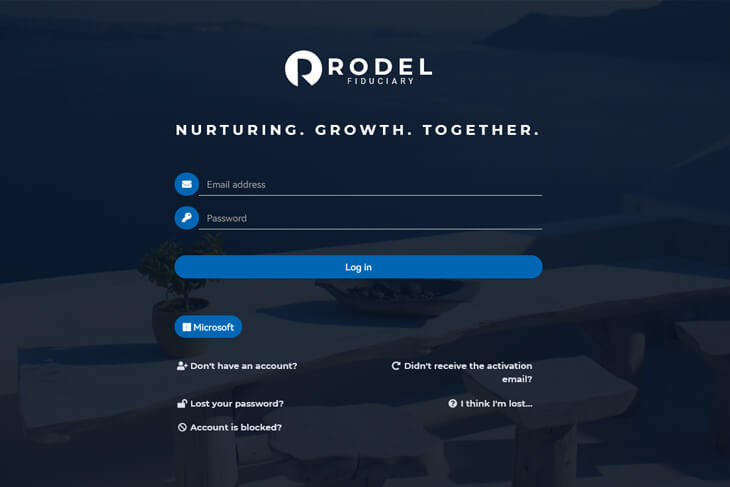
Once you are successfully registered on the Rodel Fiduciary App, you will be given access to the trust's information on any digital device connected to the internet (trust.rodelfiduciary.co.za) — on your computer, laptop, tablet or cell phone.
Please use the same email address and login password that you supplied to Rodel Fiduciary and use on the Rodel Fiduciary App.
Note: if you enter your email address or password details wrongly more than 3 times, you will be blocked from access. If this happens, contact us during office hours for assistance.
What can I see on the Rodel Fiduciary App?
- Dashboard — the home page of your trust profile, from where you can navigate to other pages with helpful information.
- My next appointment — to view future appointments, click on "Upcoming Activities".
- Recent updates — to view all updates, click on "Recent Updates".
- Role players — see all parties involved in your case.
- Details — view the details for the trust.
- My details — should your details change, inform your Portfolio Manager to update them — important, as you might not have access to information if it's out of date.
- My case — the contact details of the Case Manager appointed on your trust, who assists with identifying the needs of the injured person and recommends payment for those needs.
- Documents — view or download important documents, e.g. the Letter of Authority issued by the Master of the High Court, the Deed of Trust, ID documents, and registration documents.
- My medical records — medical treatment notes made by the treating professional.
- Treating professionals — names and contact details of the doctors or therapists who have access to the medical information on your trust.
- Notes — recent contact requests, trust administration notes and/or payments pertaining to your case.
- Activities & appointments — upcoming appointments, reflected once your medical professional or case manager has captured them, creating a timeline of treatment history.
- Trust — details of the registered trust and the contact details of the legal Portfolio Manager responsible for its administration.
- Investments (accounts) — monthly updates of all funds on investment, with statements and bank account details available in Documents.
- Contact — select "Contact Me" in the blue menu column if you need the Case Manager or Portfolio Manager to get in touch.